
By leveraging Notion AI for content summarization and task management, you can:
Use AI-generated task lists to streamline workflows and stay on top of administrative responsibilities.
Summarize reports, meeting notes, and long documents quickly, extracting key insights.
Organize school projects by automating to-do suggestions, task categorization, and deadline management.
Part 1: Content Summarization with Notion AI
Step 1: Sign Up for Notion
- Create an Account:
Visit Notion and sign up for a free account if you don’t have one. You can also download the Notion app for desktop or mobile.
Step 2: Upload or Paste the Document
- Create a New Page or Open an Existing One:
In Notion, open the workspace or page where you want to work with the content. Create a new page or open an existing one. - Paste the Content:
Copy and paste the text (meeting notes, report, or any long document) into the page. You can also upload PDFs, images, or other files that contain the text you want to summarize.
Step 3: Summarize the Content
- Activate Notion AI:
Once your content is in Notion, highlight the text you want summarized. - Use the Summarize Command:
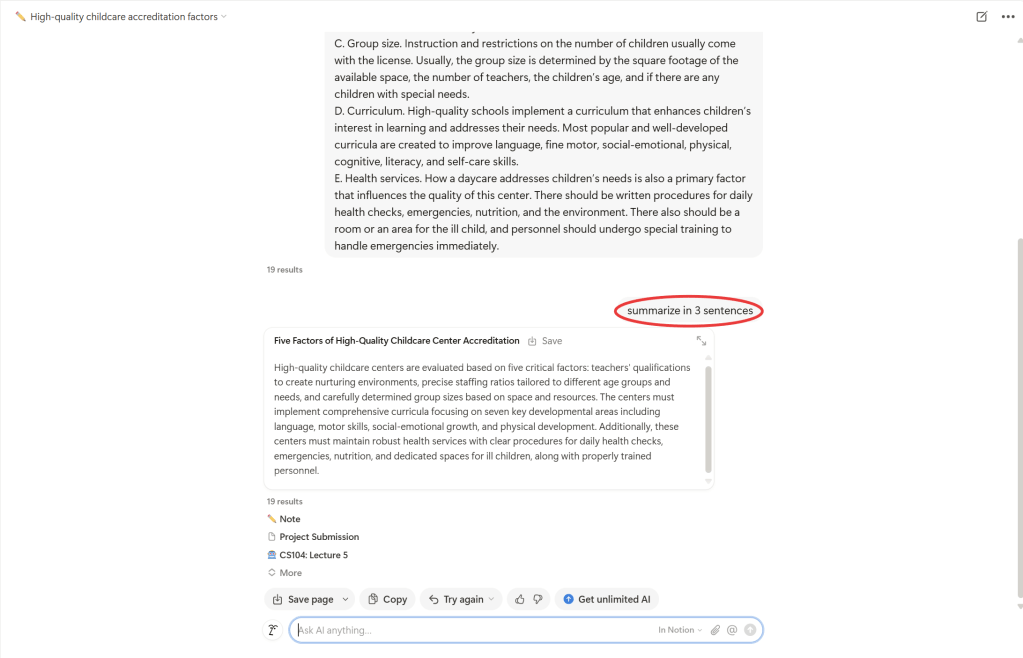
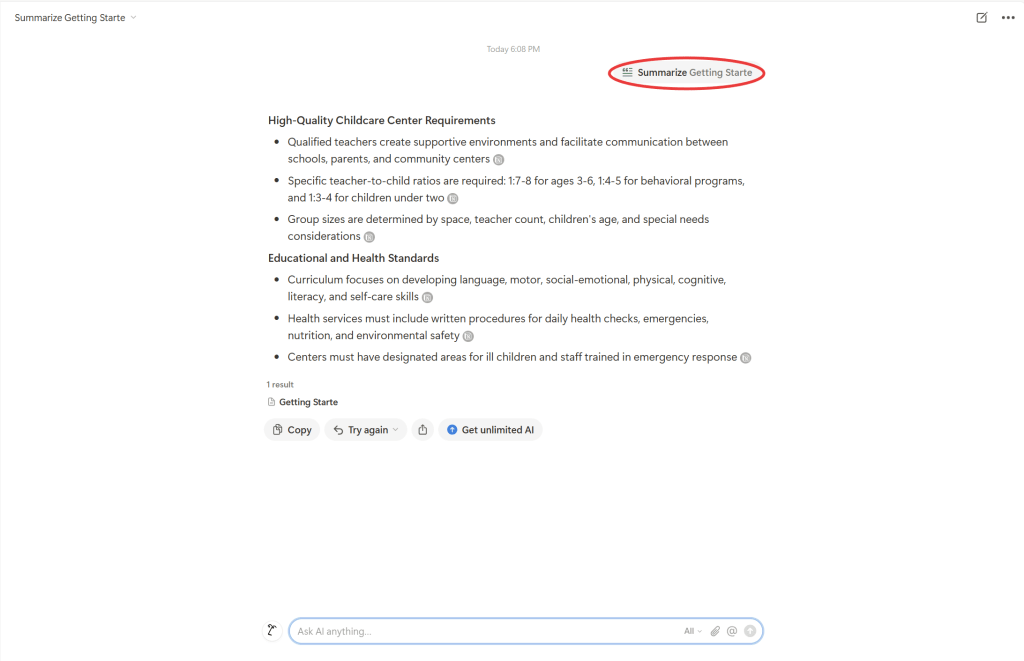
Type “/summarize” in the text block, or click on the AI icon in the top bar of Notion. Notion will prompt you with the option to summarize the selected content.

- Customize the Summary:
You can provide a specific instruction to Notion AI, such as:- “Summarize the key points from this meeting.”
- “Summarize this report in 3 sentences.”
- Review and Edit the Summary:
Notion AI will generate a summary based on your instructions. You can then review it and make any necessary edits.
Step 4: Organize the Summarized Content
- Refine and Tag Key Insights:
You can refine the summary further by organizing key insights into bullet points, headings, or even tables. This helps with clarity and organization. - Create Actionable Items:
After summarizing, you can break down action items, deadlines, or follow-up tasks directly from the summary.
Part 2: Task Management & Organization with Notion AI
Step 1: Create or Open Your Task Management Page
- Set Up a Task Management System:
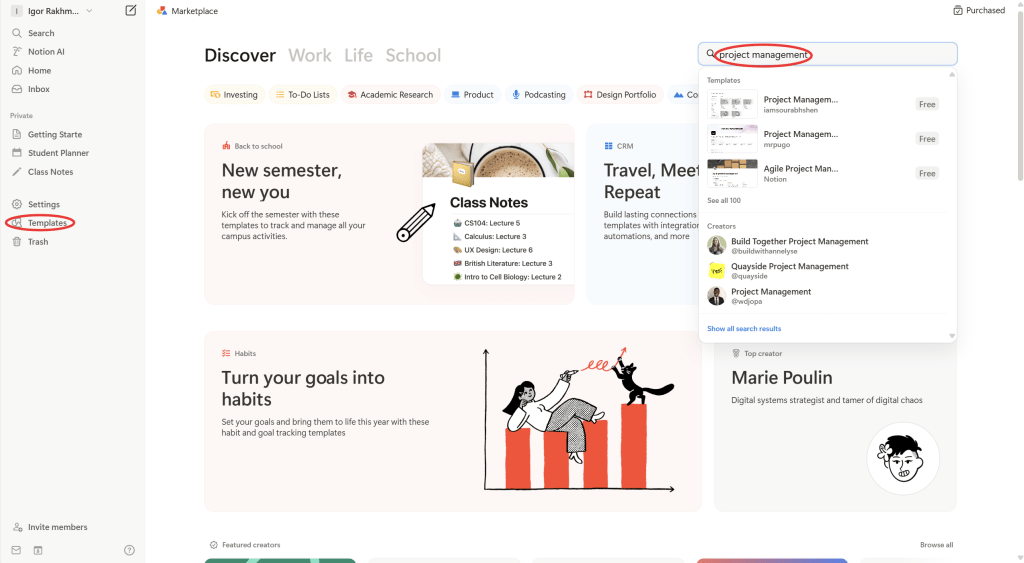
Start by creating a page in Notion for managing your school projects or administrative tasks. You can use templates like Project Management or Task List templates, or simply create a new page. - Add Your Tasks:
Start by adding your tasks manually (e.g., deadlines, assignments, projects). You can use checklists or tables to list tasks.
Step 2: Use Notion AI to Organize Tasks
- Automate Task Suggestions:
In your Notion page, you can add a section like “Tasks for Today” or “To-Do List.” Type “/AI” or click on the AI icon to enable Notion AI to suggest tasks based on your notes or project requirements. For example:- “Suggest to-dos for this project.”
- “What tasks should be prioritized for this event?”
- Set Reminders and Deadlines:
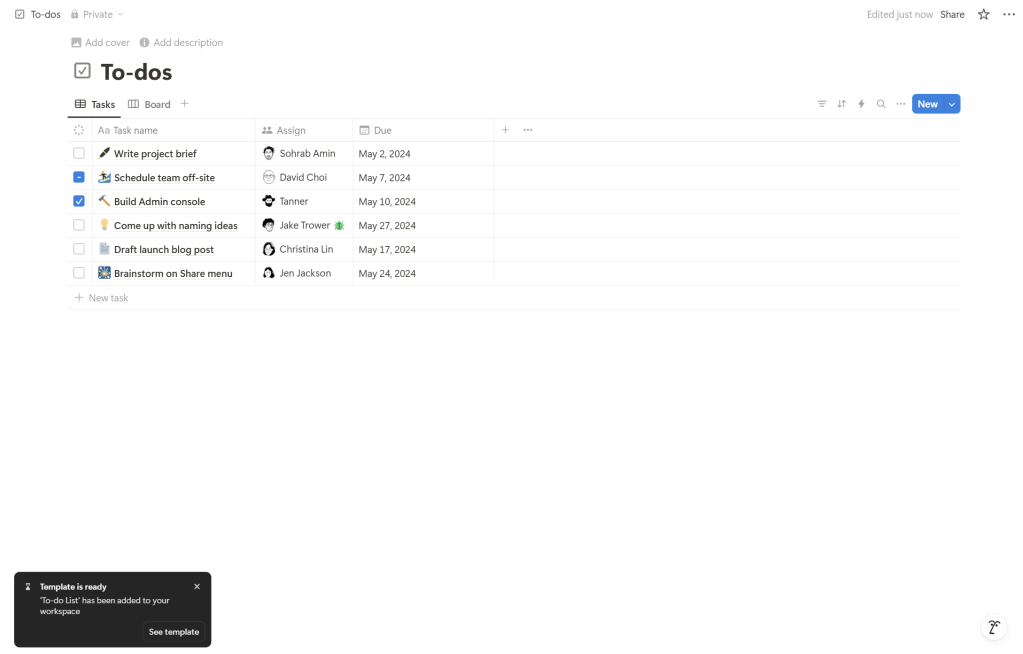
After Notion AI suggests tasks, you can assign deadlines and reminders by adding due dates directly in the task list or calendar view. - Organize Tasks by Categories:
Create different categories for tasks (e.g., Important, Upcoming, Complete) and use tags to sort tasks (e.g., School Project, Admin Tasks).
Step 3: Use Notion AI to Summarize Tasks and Meetings
- Meeting Notes Summarization:
If you’ve had a meeting and need to summarize the tasks discussed, use Notion AI to summarize the meeting notes. Highlight the meeting content, type “/summarize”, and Notion AI will generate a brief overview of the key action items. - Generate a Task List from Notes:
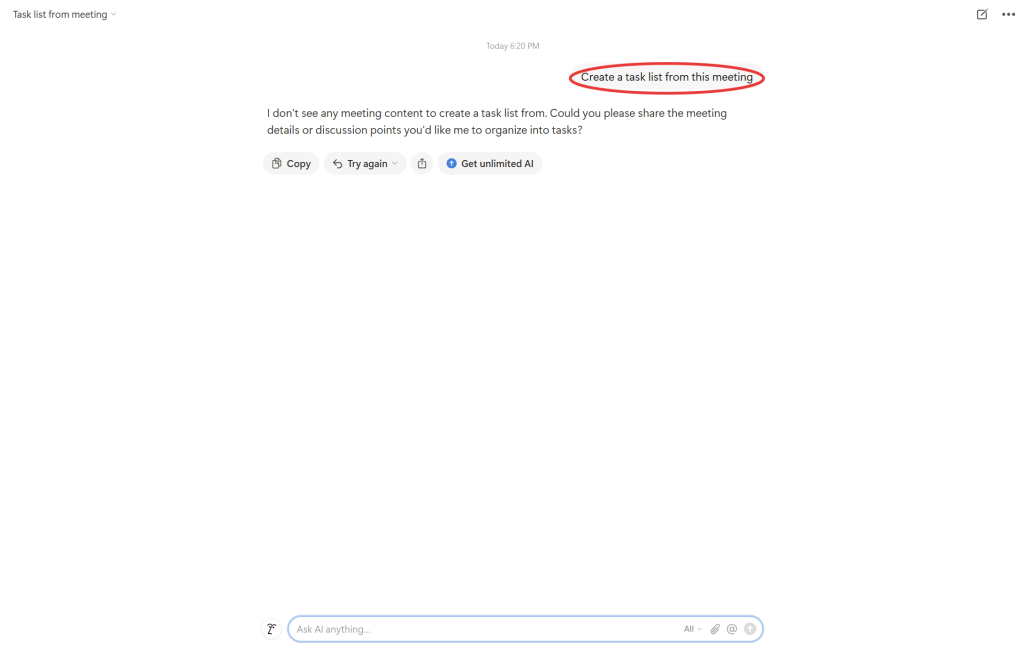
Use the /todo or /AI command to have Notion AI extract actionable tasks from your meeting notes, emails, or project descriptions. For example, if you paste a set of meeting notes, you can ask Notion AI to:- “Create a task list from this meeting.”
- “What follow-up actions are required?”
Step 4: Track Progress and Review Tasks
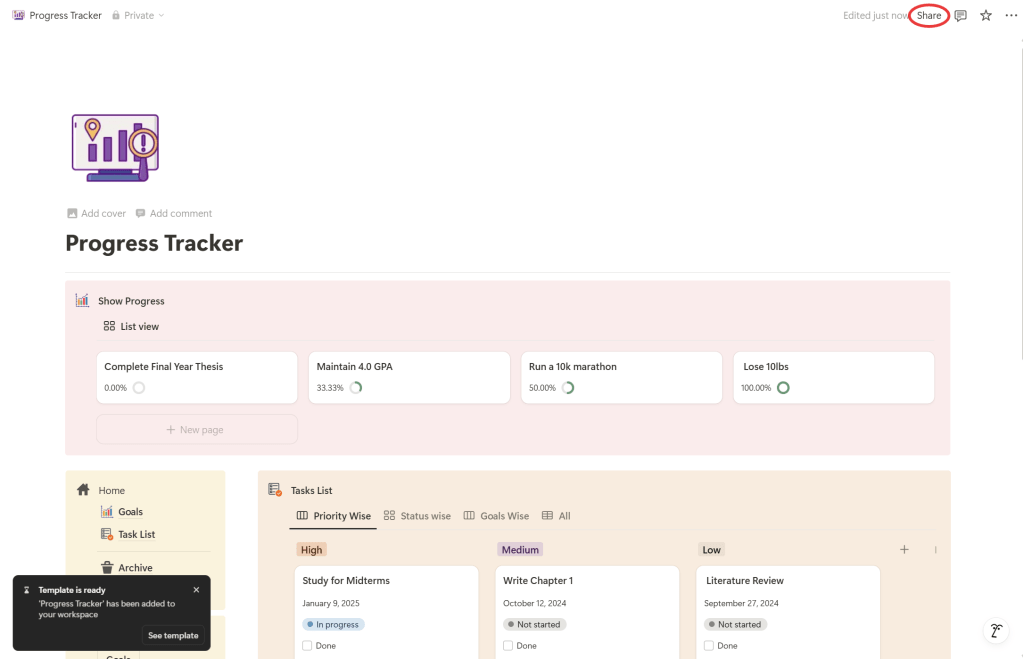
- Create a Progress Tracker:
Add a Progress Tracker column to your tasks to track their completion status (e.g., In Progress, Completed). - Automate Weekly Reviews:
You can ask Notion AI to help you review your progress each week. For example, use the command:- “Summarize my tasks for this week.”
- “What tasks should be prioritized next week?”
- Set Recurring Tasks:
Notion AI can help create recurring tasks (e.g., weekly check-ins, project reviews) by adding reminders with recurring due dates.

Step 5: Collaboration and Sharing
- Collaborate with Team Members:
Share the Notion page with your colleagues or team members, and assign them tasks. Notion AI will continue to provide task suggestions based on the overall project or group discussions. - Set Permissions:
You can control who can view or edit the task lists by adjusting the sharing settings in Notion.
 NewEducations