
Step 1: Setting Up Monday.com for School Use
- Create a New Board:
- Log into Monday.com.
- Click on the “Create New Board” button.
- Choose a template, such as “Event Planning,” “Curriculum Planning,” or start from scratch.
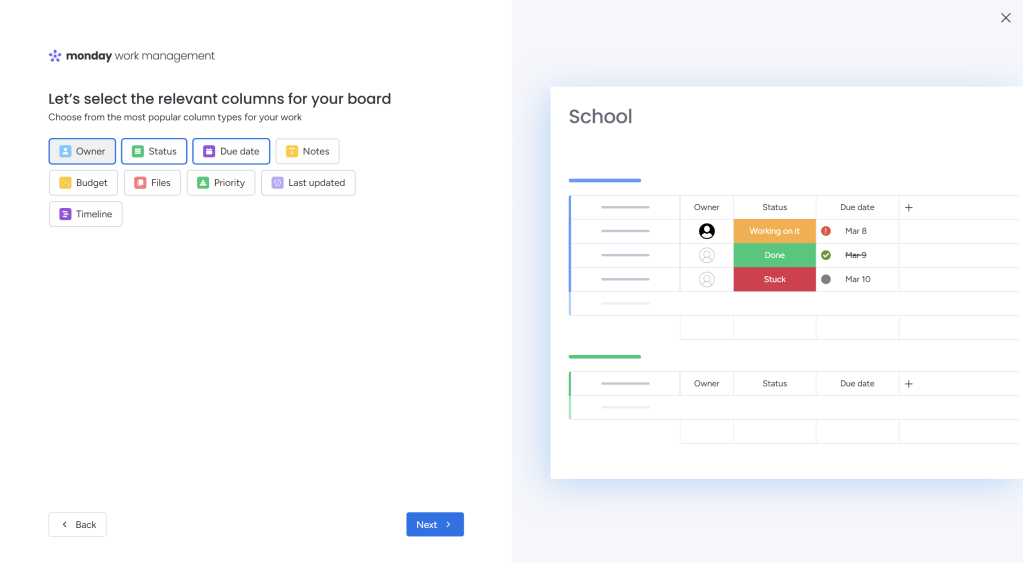
- Add Columns and Customize:
- Monday.com allows you to add different types of columns, such as:
- Text: For names, tasks, or descriptions.
- Date: For deadlines.
- Status: To track the task’s progress (e.g., “To Do,” “In Progress,” “Completed”).
- People: Assign tasks to specific staff or students.
- Monday.com allows you to add different types of columns, such as:
- Invite Team Members:
- You can invite other educators, students (if applicable), and team members to join your board. They can collaborate, track progress, and make updates in real time.
Step 2: Automating Tasks
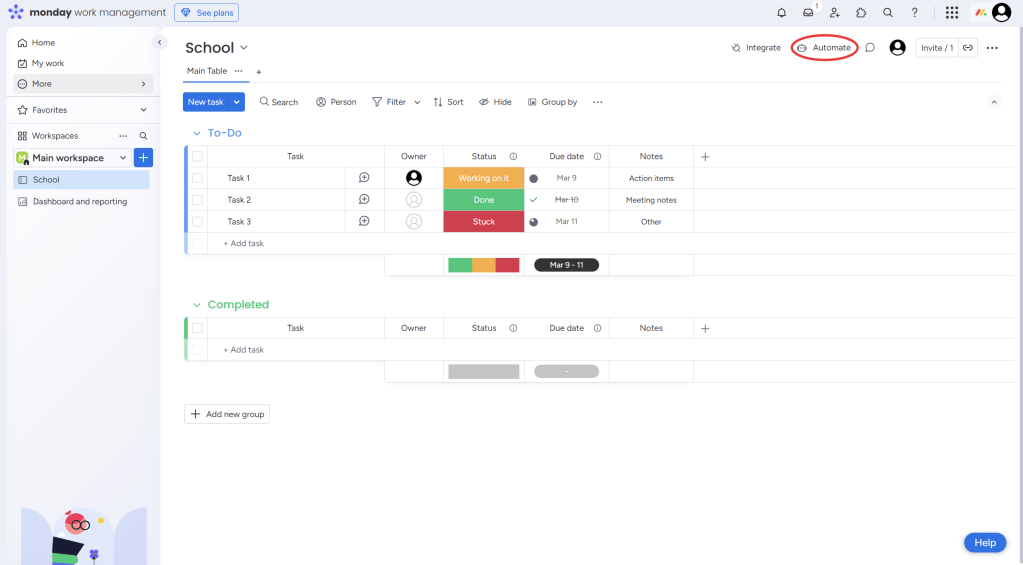
- Set Up Workflow Automations:
- Go to the “Automations” section.
- Select a preset automation or create your own:
- For example, you can set an automation like: “When a task is marked as ‘Complete,’ move it to the ‘Done’ group.”
- Another useful automation is: “Notify me when a task is due in 2 days.”
- Use Automation for Reminders:
- For teachers, you can set reminders for tasks like grading assignments or preparing materials. Automation will ensure everyone is notified in advance.
Step 3: Managing School Projects Using the Dashboard
- Curriculum Planning:
- Create a board for curriculum planning with tasks like “Prepare Lesson Plans,” “Create Activities,” and “Review Assessments.”
- Set deadlines and track progress using the “Status” column.
- Event Organization:
- Create a board for organizing school events (e.g., a science fair or parent-teacher meeting).
- Add tasks such as “Book Venue,” “Send Invitations,” and “Prepare Supplies.”
- Use automation to send reminders about upcoming event preparations.
Step 4: Collaboration and Communication
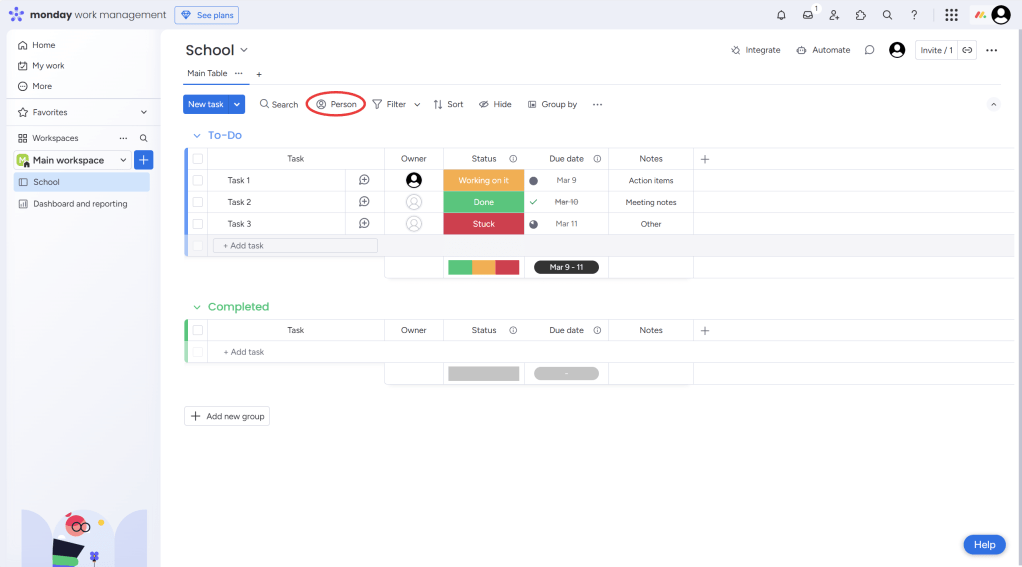
- Assign Tasks to Team Members:
- Use the “People” column to assign tasks to the right people (teachers, administrators, etc.).
- Use Comments and File Sharing:
- Team members can leave comments on tasks for easy communication.
- You can also upload files (like lesson plans or event flyers) directly into the tasks.
Step 5: Monitoring Progress and Adjusting Plans
- Track Progress:
- View overall project status using your customizable dashboard. This helps you see how much progress is being made and where attention is needed.
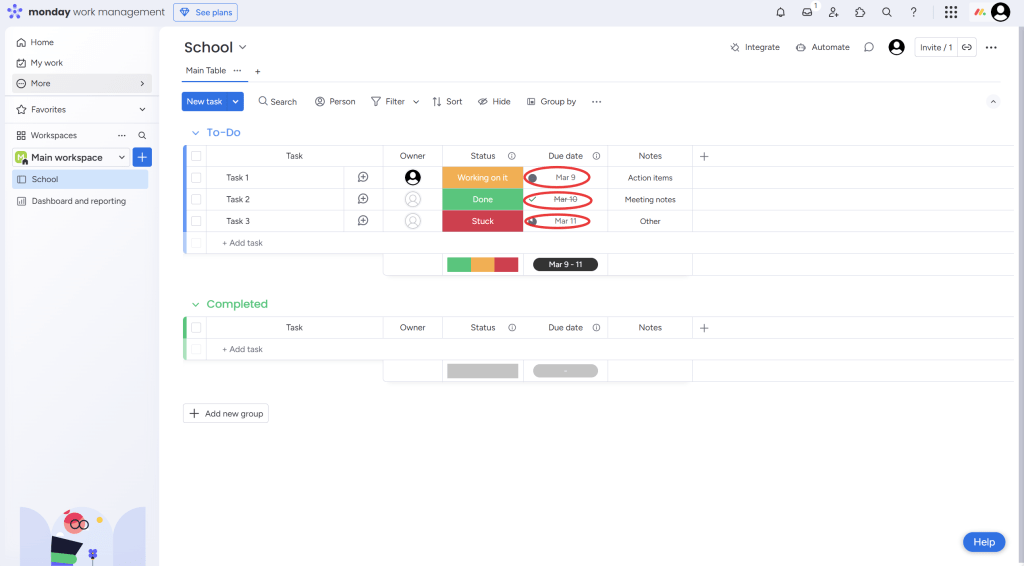
- Adjust Deadlines:
- If needed, adjust task deadlines or reassign tasks. Monday.com will automatically update and notify the relevant people.
Step 6: Review and Reflect
- At the end of each project or event, review the entire process. What went well? What could be improved? This helps refine how Monday.com is used in future school projects.
For General Information on the use of Monday.com you can watch the video created by Kevin Stratvert:
 NewEducations