
Create surveys or forms for different purposes like teacher feedback, student surveys, or even tracking student attendance. The responses can be directly linked to Google Sheets for automatic organization.
Step 1: Access Google Forms
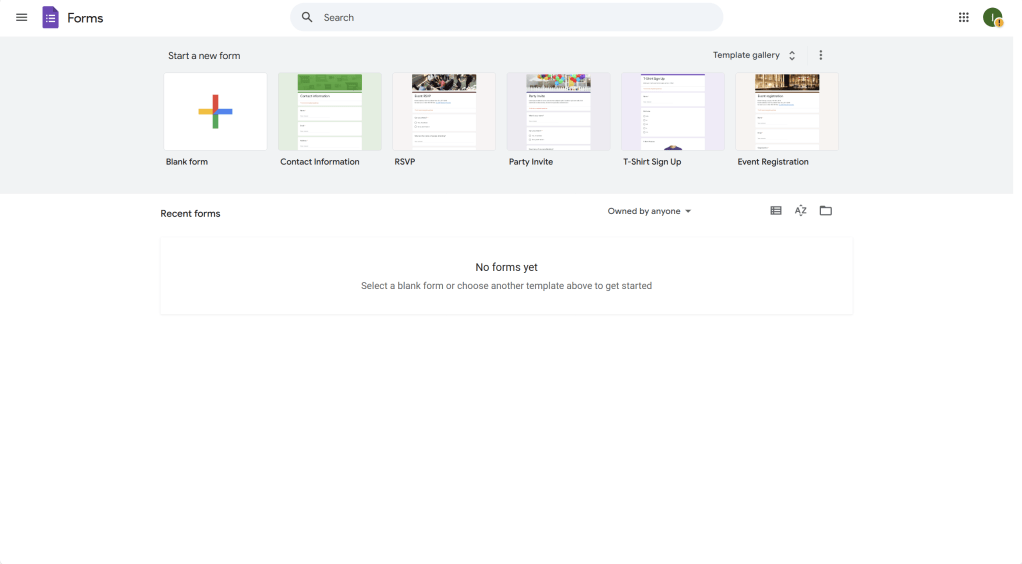
- Open your web browser and go to Google Forms.
- Log in with your Google account
Step 2: Create a New Form
- On the Google Forms homepage, click the “+” (Blank) form button or select a template from the “Template Gallery” for specific types of forms (e.g., feedback, survey).
- A new form will open where you can start adding your questions.

Step 3: Add Questions to Your Form
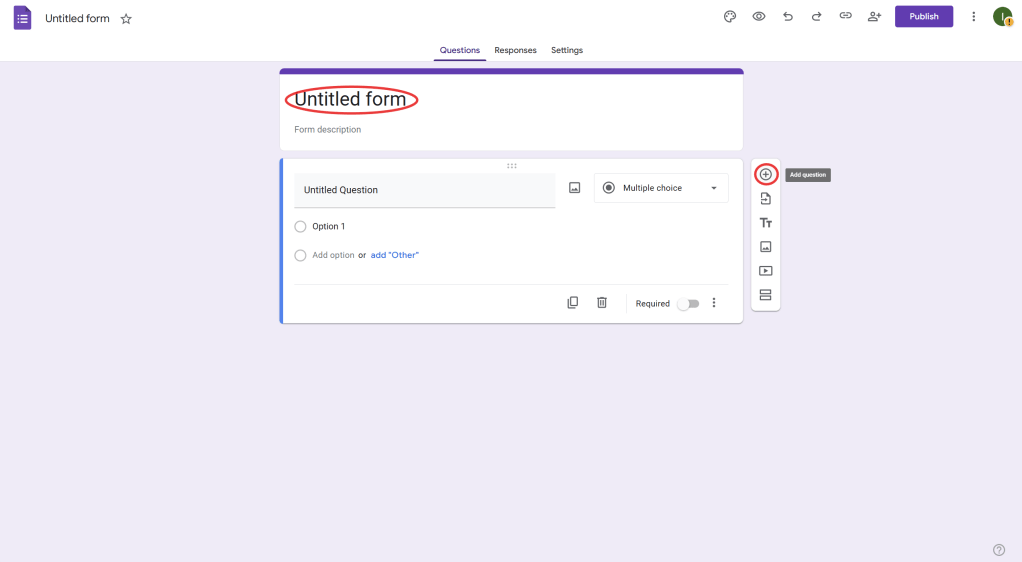
- In the new form, you’ll see the “Untitled Question” section. Here, you can type your first question.
- To add more questions, click the “+” (Add Question) button on the right sidebar.
- Choose the type of question (Multiple choice, Short answer, Dropdown, etc.) and enter your options or settings.
Step 4: Customize Your Form
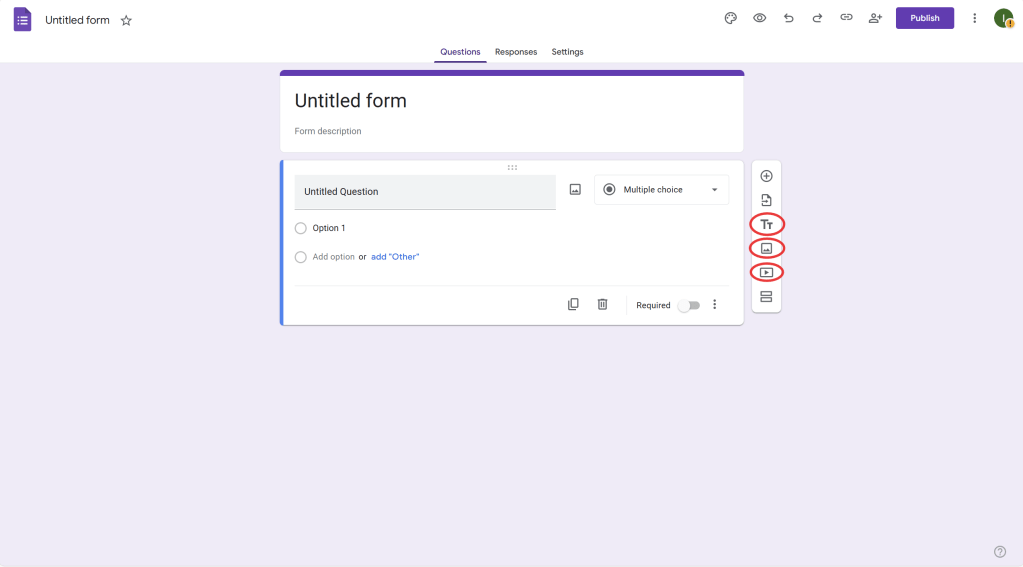
- To add titles, descriptions, or sections, click on the “Tt” (Add Title and Description) option to label your form.
- You can also add images or videos to make the form more engaging by clicking the image or video icons in the toolbar.
Step 5: Set Up Automatic Responses in Google Sheets
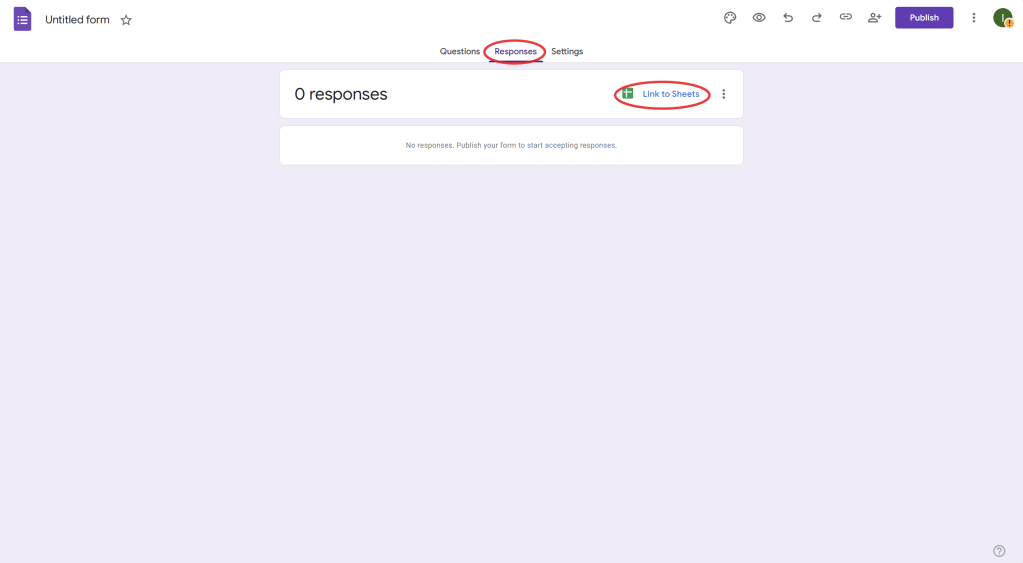
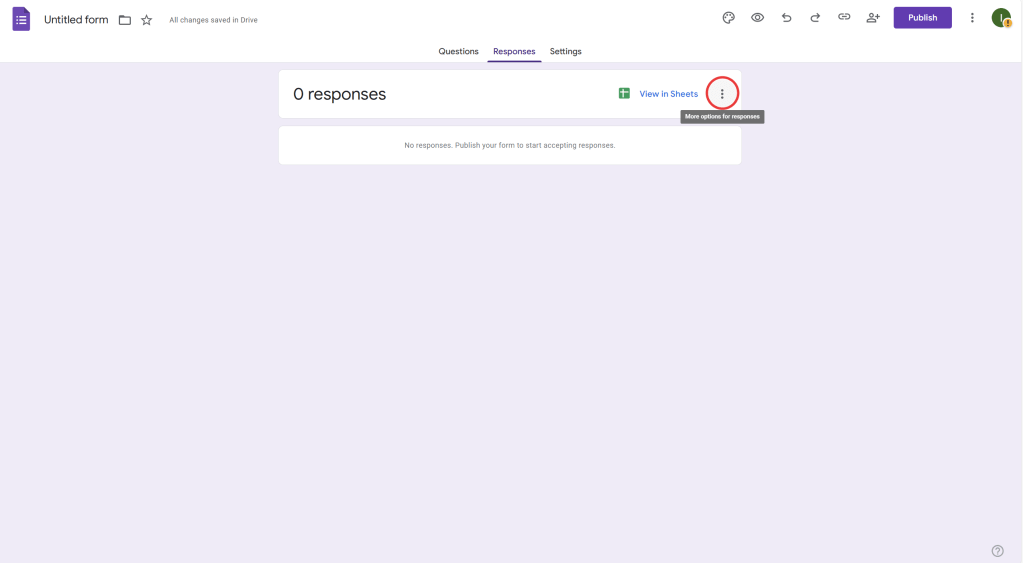
- Once your form is ready, click the “Responses” tab at the top of the form editor.
- Click the Google Sheets icon (green spreadsheet icon) to link your form responses to a new or existing Google Sheet.
- This will automatically create a new spreadsheet where all the responses will be logged as they come in.
Step 6: Distribute the Form
- After your form is set up, click the “Send” button in the top right.
- You can choose to send the form via email, share the link directly, or embed the form in a website.
- Copy the form link and distribute it to the intended recipients (teachers, students, etc.).

Step 7: Track and Analyze Responses
- Once the form is shared and responses start coming in, you can view them in the “Responses” tab.
- The linked Google Sheets will update automatically with each new submission.
- In Google Sheets, you can organize, filter, and analyze the responses using built-in tools like charts, pivot tables, and functions.
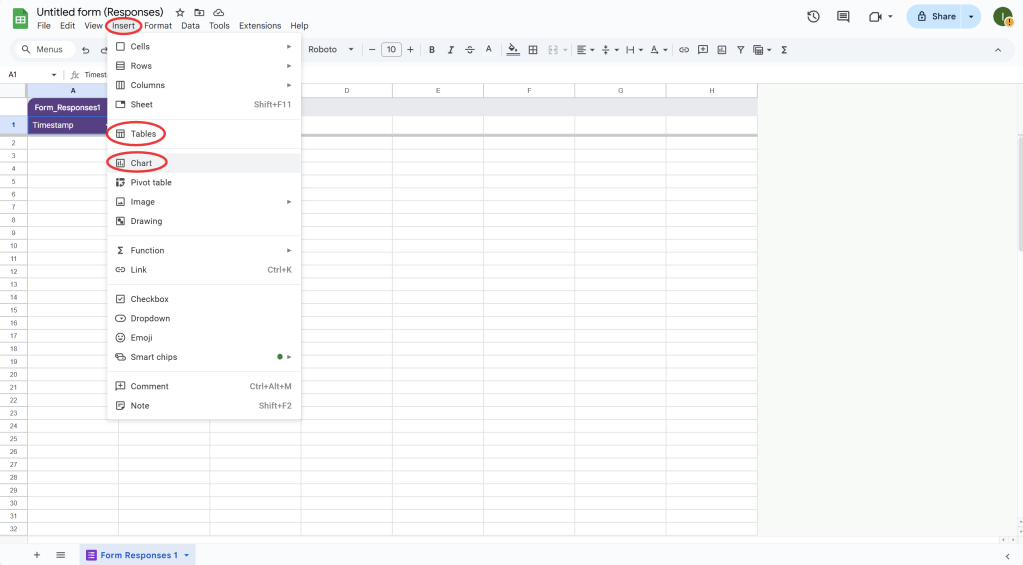
Step 8: Automate Data Processing
- You can set up automated processes for your responses in Google Sheets by using Google Sheets Functions or Google Apps Script for more advanced automation (e.g., sending email alerts when a response is submitted).
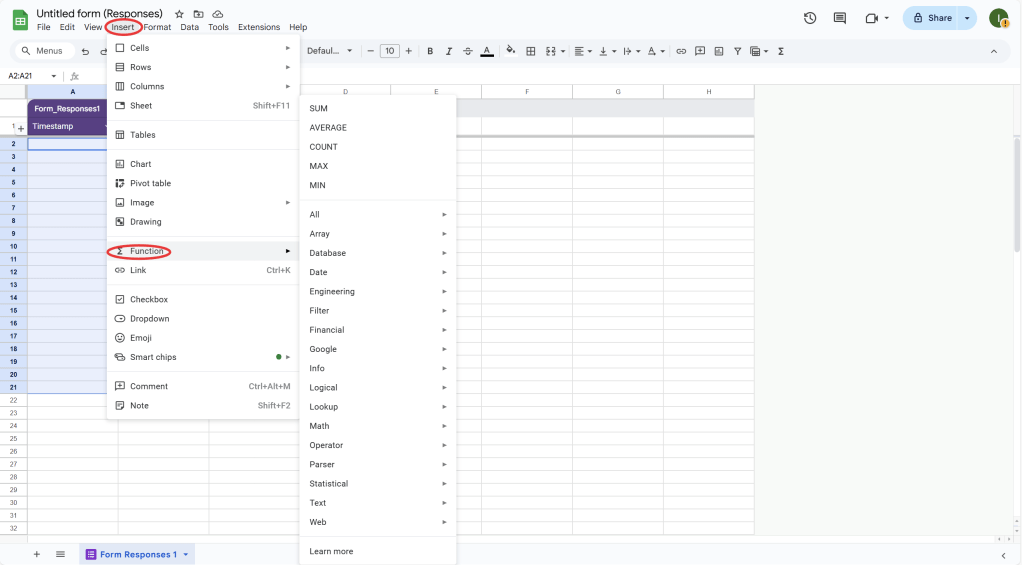
- You can also use Add-ons in Google Sheets for further automation, like sending a follow-up email to respondents based on their answers.
Using Google Forms for data collection is an excellent way to gather information efficiently, whether for surveys, feedback, or attendance tracking. By linking responses to Google Sheets, you can automatically organize and analyze the data in real-time.
 NewEducations