
Use Docs to create meeting notes, reports, or memos. Multiple users can edit a document in real-time, which helps in improving collaboration.
Step 1: Access Google Docs
- Open your web browser and go to Google Docs.
- Log in with your Google account
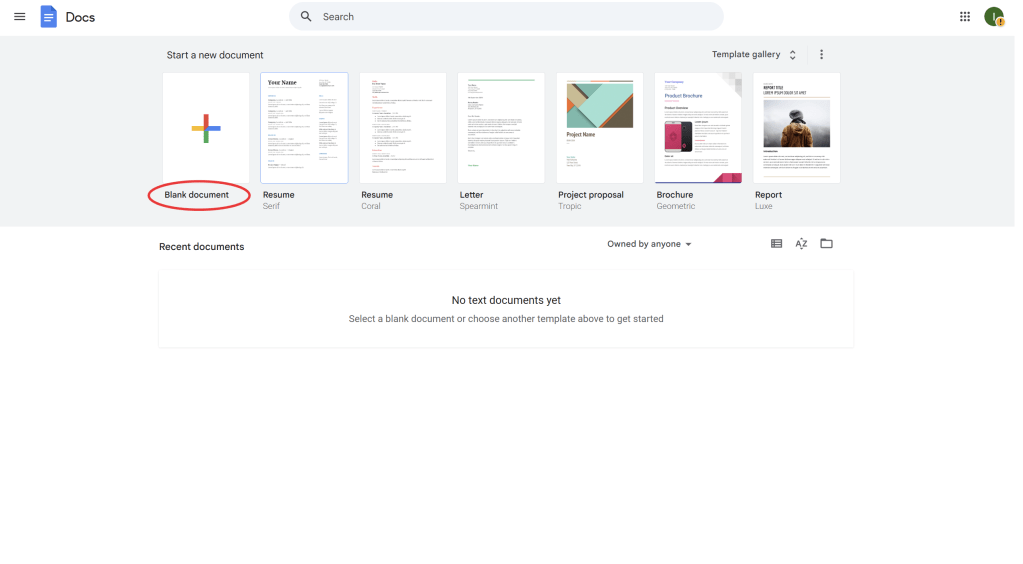
Step 2: Create a New Document
- On the Google Docs homepage, click the “+” (Blank) document or select a template from the “Template Gallery” if you prefer a structured format.
- The new document will open in a new tab, ready for editing.
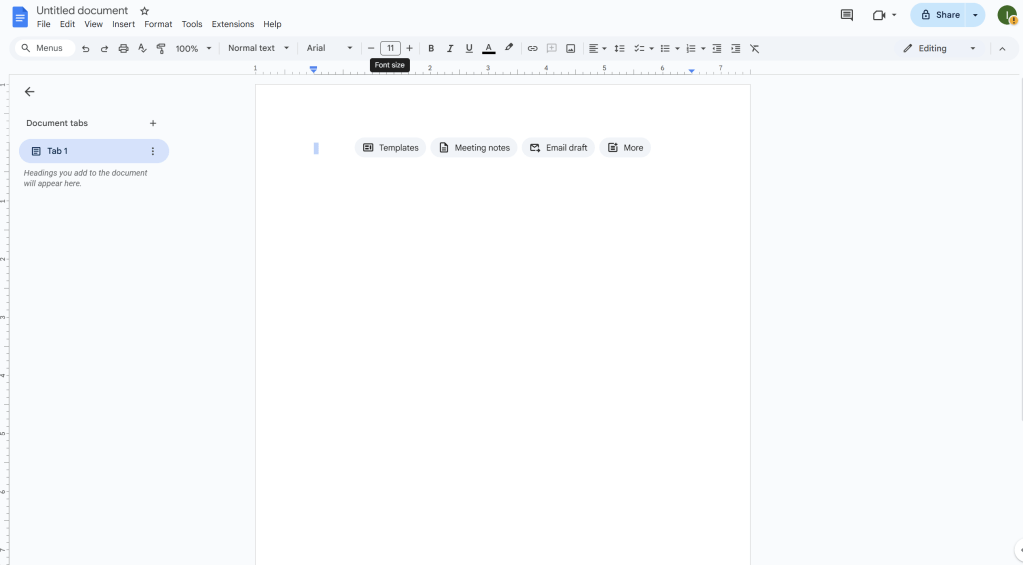
Step 3: Share the Document for Collaboration
- Once your document is ready, click the “Share” button located in the top-right corner.
- In the “Share with people and groups” section, enter the email addresses of the collaborators you want to invite.
- Choose the permissions for each collaborator (Editor, Commenter, Viewer).
- Click “Send” to share the document.
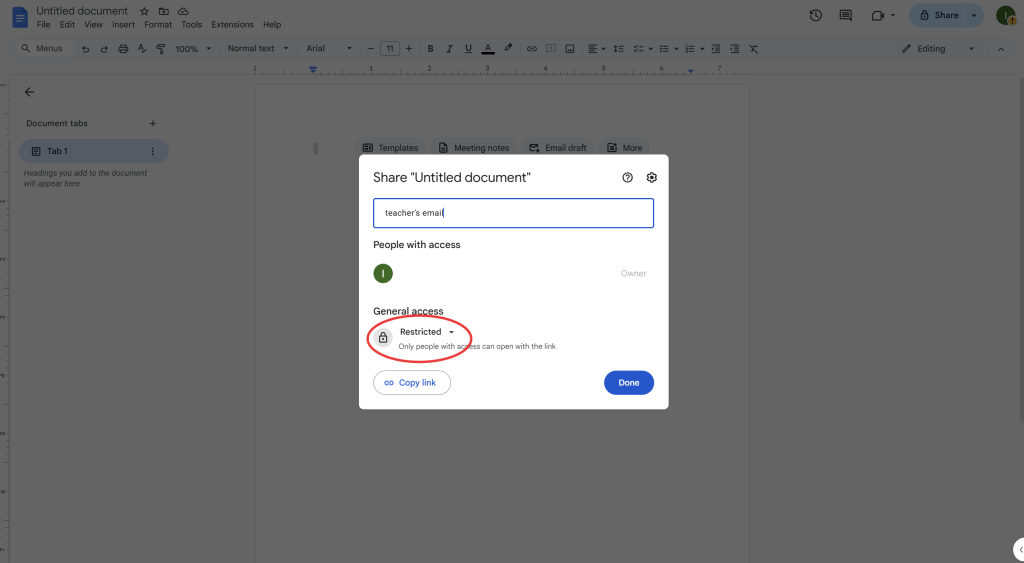
Step 4: Real-Time Collaboration
- Once collaborators have access, you’ll see their cursor appear on the document as they type or edit in real-time.
- Google Docs will highlight their cursor with their name and color, so you can see who is working on which section.
- You can chat with collaborators using the “Comments” feature or the “Suggesting” mode for collaborative feedback.
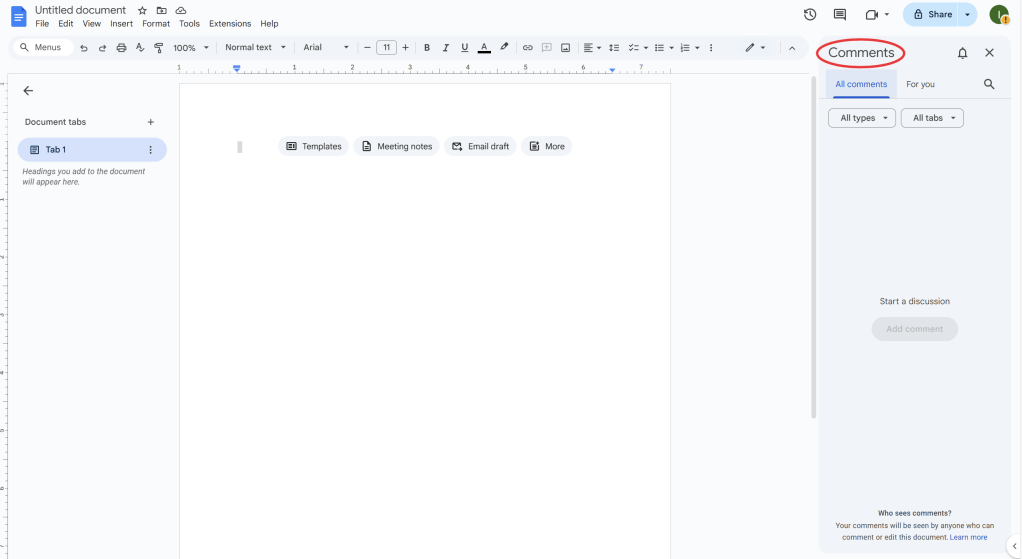
Step 5: Add Comments and Suggestions
- To add a comment, highlight the section of text you want to comment on, right-click, and select “Comment”.
- Type your comment in the comment box that appears on the right side of the screen.
- For suggestions, switch to “Suggesting” mode from the top-right corner dropdown, which will allow you to make edits that the document owner can accept or reject.
Step 6: Track Changes and Revisions
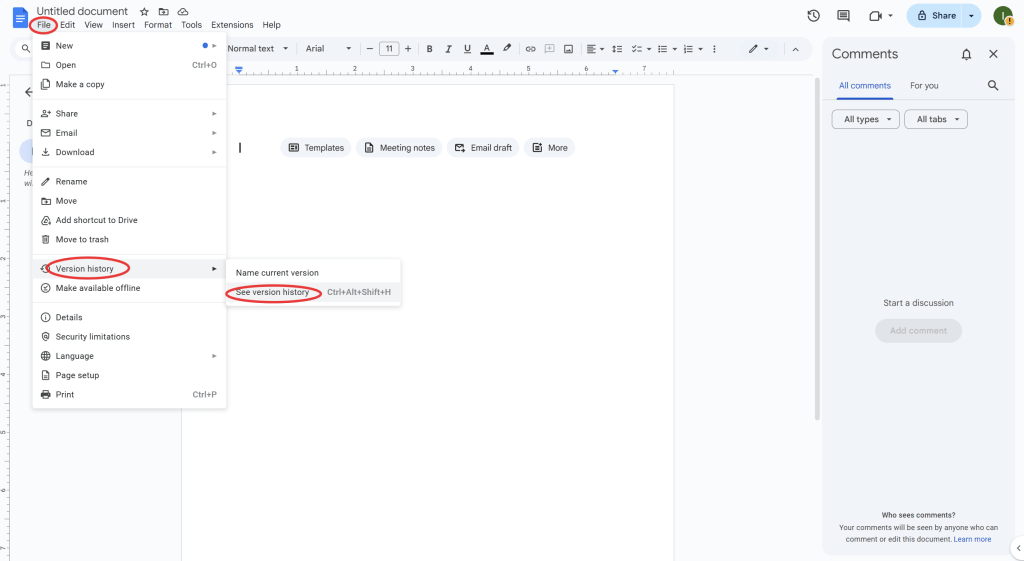
- To see previous edits, go to File > Version history > See version history.
- This will show all changes made to the document and allow you to revert to previous versions if needed.
Step 7: Finalize and Organize
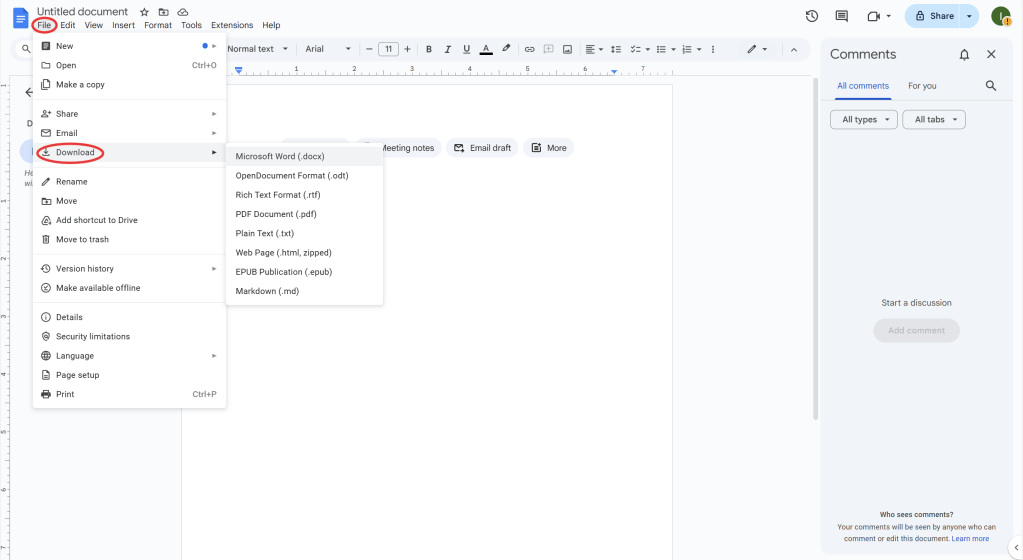
- Once the document is ready, you can download it in various formats like PDF, Word, or Plain Text by clicking on File > Download.
- To keep your document organized, consider adding headings, using bullet points, and formatting sections clearly (especially for reports or meeting notes).
 NewEducations