
Google Calendar
Step 1: Access Google Calendar
- Open your web browser and go to Google Calendar.
- Log in with your Google account
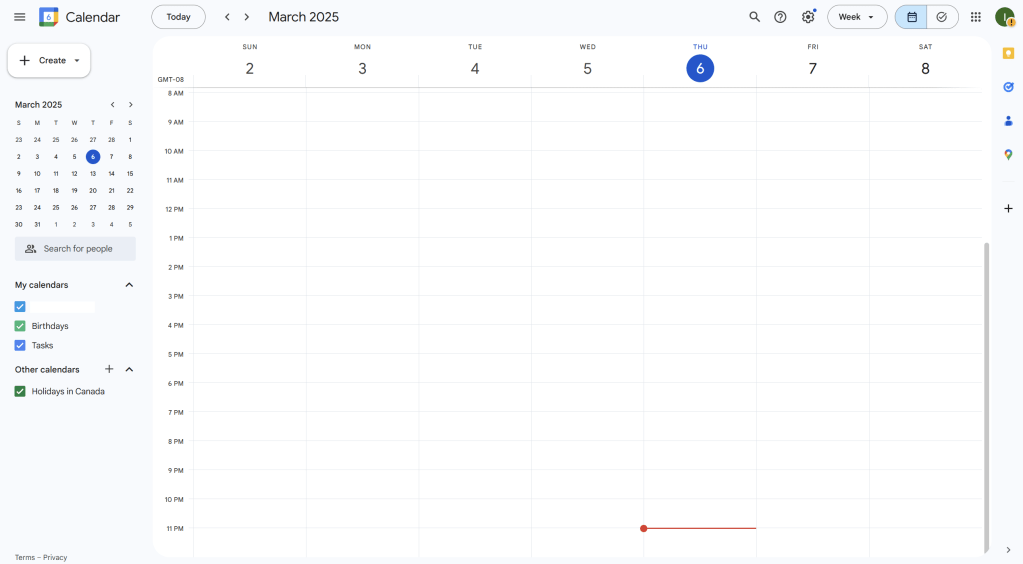
Step 2: Create a New Event
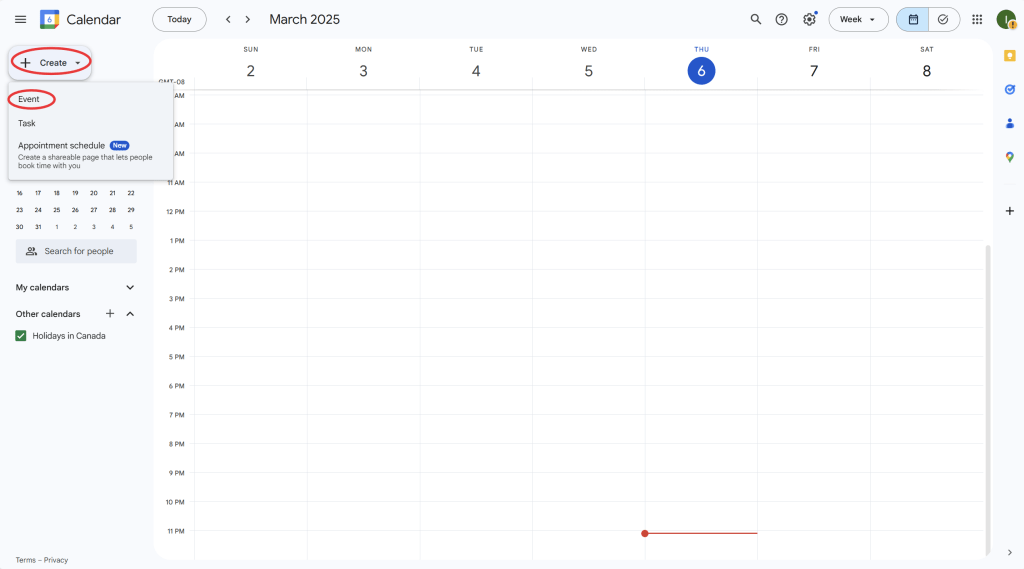
- On the Google Calendar homepage, click the “Create” button located on the left side or directly on the calendar grid where you want to add the event.
- A new event window will pop up.
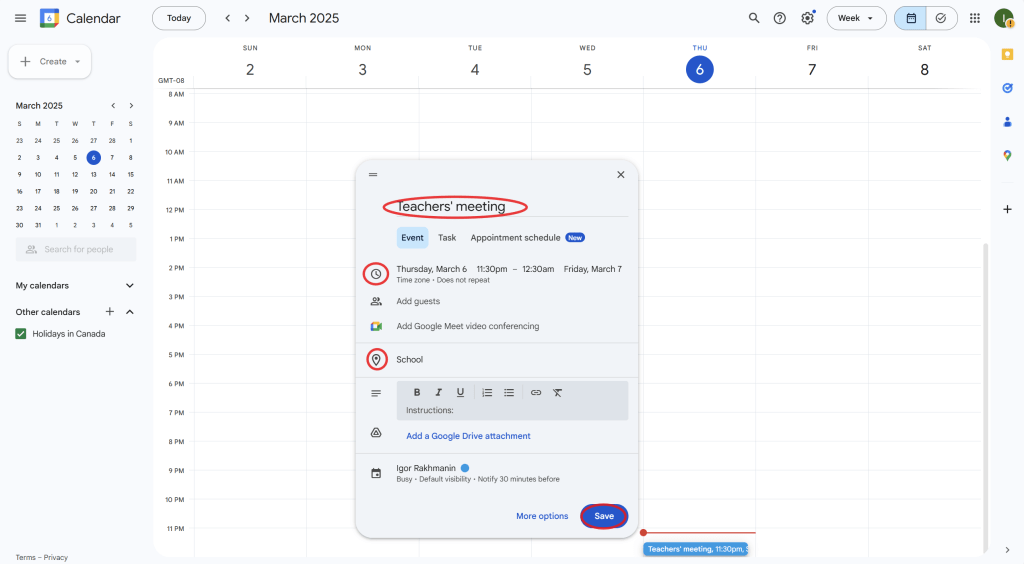
Step 3: Set Event Details
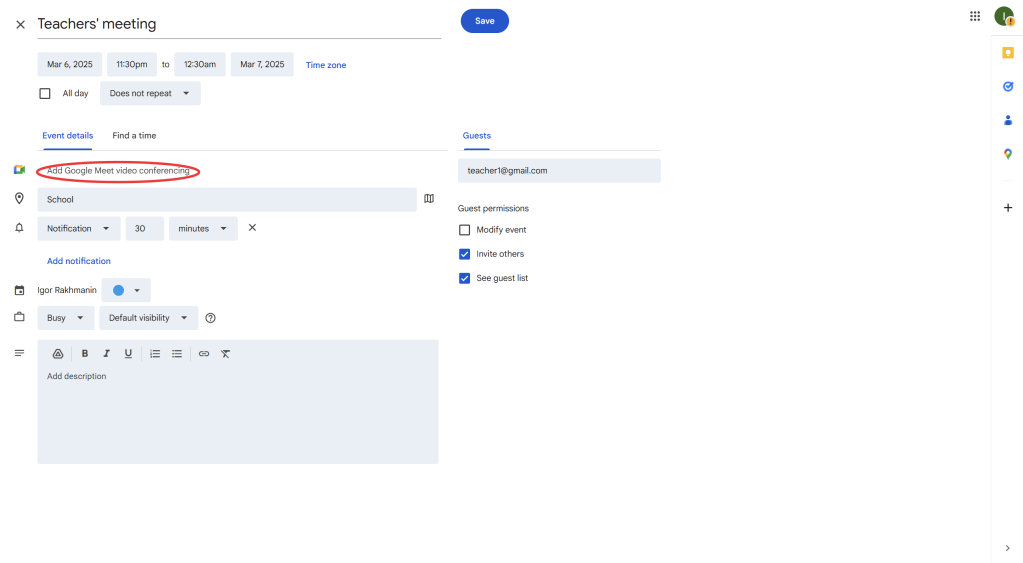
- Title: Enter the name of the event (e.g., “Parent-Teacher Conference”).
- Date and Time: Set the start and end time for the event. You can choose a specific date or make it a recurring event.
- Location: If the event has a physical location, add it in the “Location” field.
- Description: Add any additional details for the event, such as agenda or important instructions.
Step 4: Set Reminders and Notifications
- Under the “Notification” section, you can set reminders for the event. You can set multiple reminders (e.g., one 1 hour before, another 1 day before).
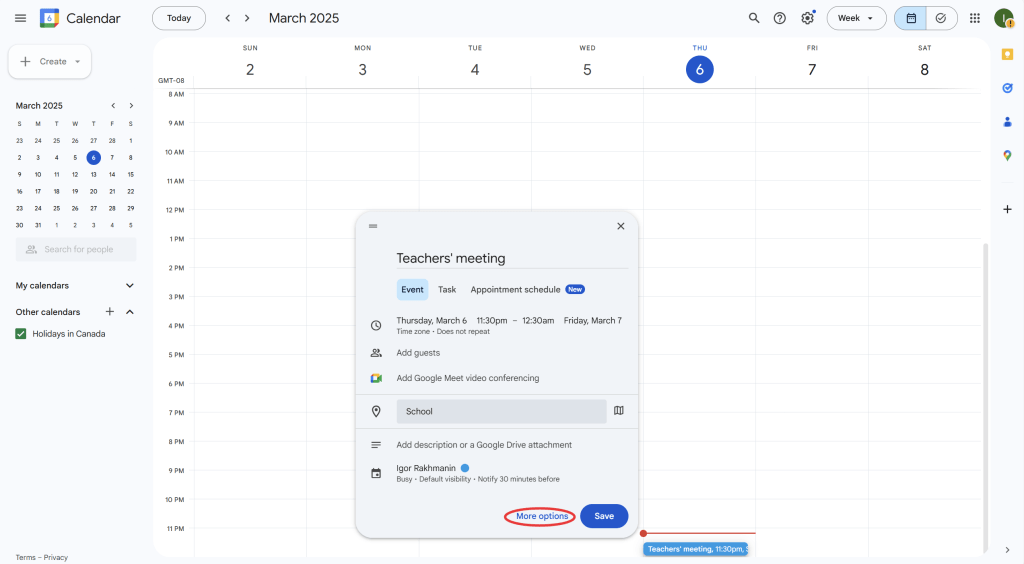
- Choose the notification type (popup or email).
- To ensure you’re well-prepared, set multiple reminders for critical events like meetings or conferences.

Step 5: Invite Guests
- Under the “Add guests” section, enter the email addresses of the people you want to invite (e.g., teachers, parents, students).
- Guests will receive an email invite with the event details and options to accept, decline, or mark it as “maybe.”

Step 6: Sync Google Calendar with Other Google Tools
- If you’re using other Google tools like Google Meet, you can add a virtual meeting link by clicking “Add Google Meet video conferencing”.
- You can also sync your calendar with other devices (phones, tablets) by ensuring you’re logged into the same Google account.
Step 7: Save and Share the Event
- Once you’ve added all the details, click “Save” at the top right of the event window.
- After saving, you’ll be prompted to send invitations to your guests. Click “Send” to notify them about the event.

Step 8: Manage Events on the Calendar
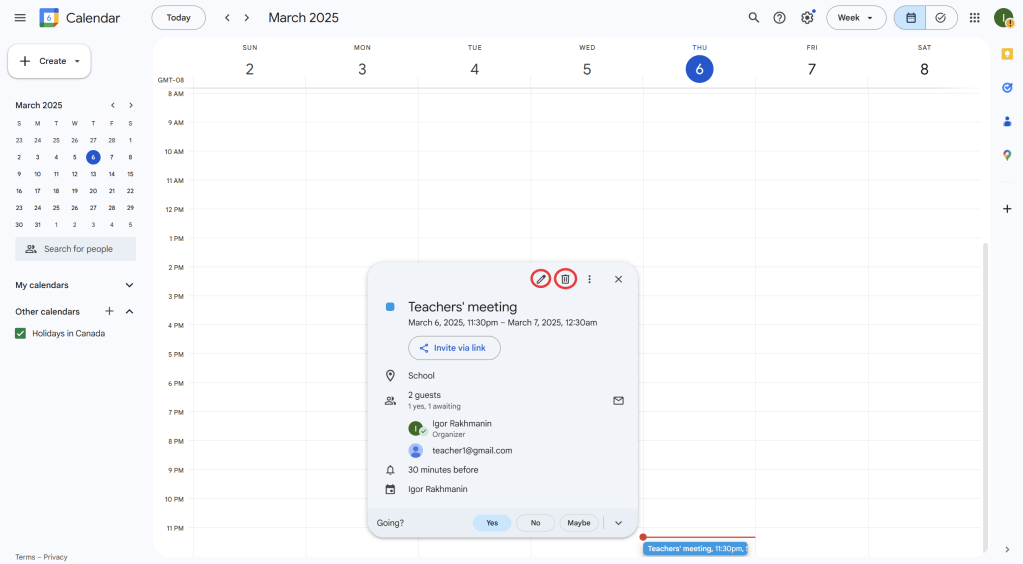
- Once the event is saved, it will appear on your Google Calendar.
- You can click on the event to edit or delete it.
- You can also change event details, add more guests, or reschedule the event directly from your calendar.
Step 9: Use Google Calendar for Recurring Events
- If the event repeats (e.g., weekly meetings or monthly deadlines), click “Does not repeat” under the event details, and select the recurrence options (daily, weekly, monthly, etc.).
- You can customize the repetition to fit your schedule.

Step 10: Review and Stay on Track
- Google Calendar will send you reminders before your event. You can also view your upcoming events in the calendar grid.
- On the day of the event, the Google Calendar app (if synced with your phone) will send real-time notifications to help you stay on track.
Using Google Calendar is an excellent way to manage and organize important events such as school meetings, deadlines, or parent-teacher conferences. You can easily set reminders, invite guests, and sync the calendar with other Google tools like Google Meet for virtual meetings. With real-time notifications, Google Calendar helps ensure that you don’t miss any important events.
 NewEducations