
Automating repetitive tasks
Step 1: Create the Google Form
- Open Google Forms and create a new form.
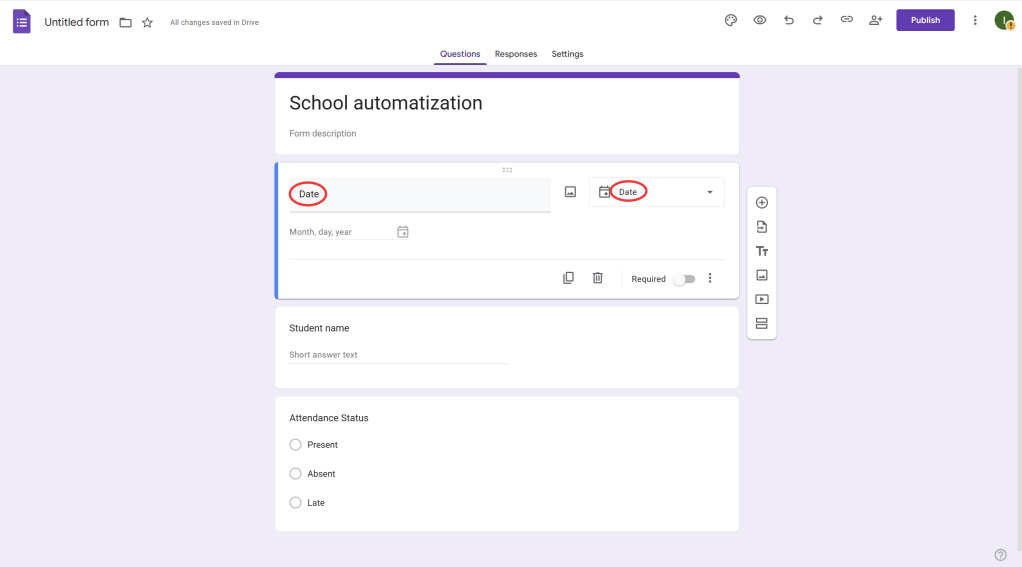
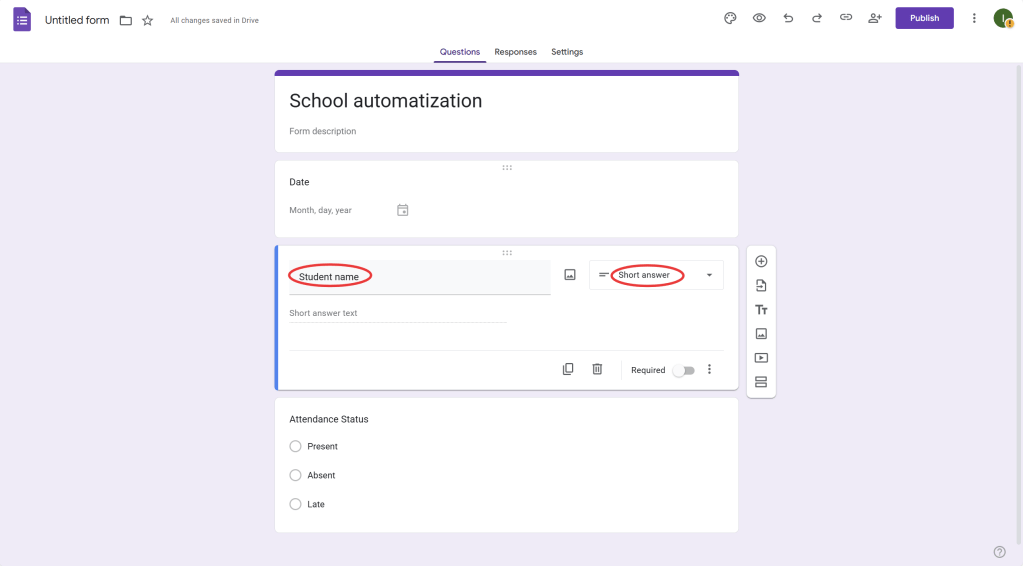
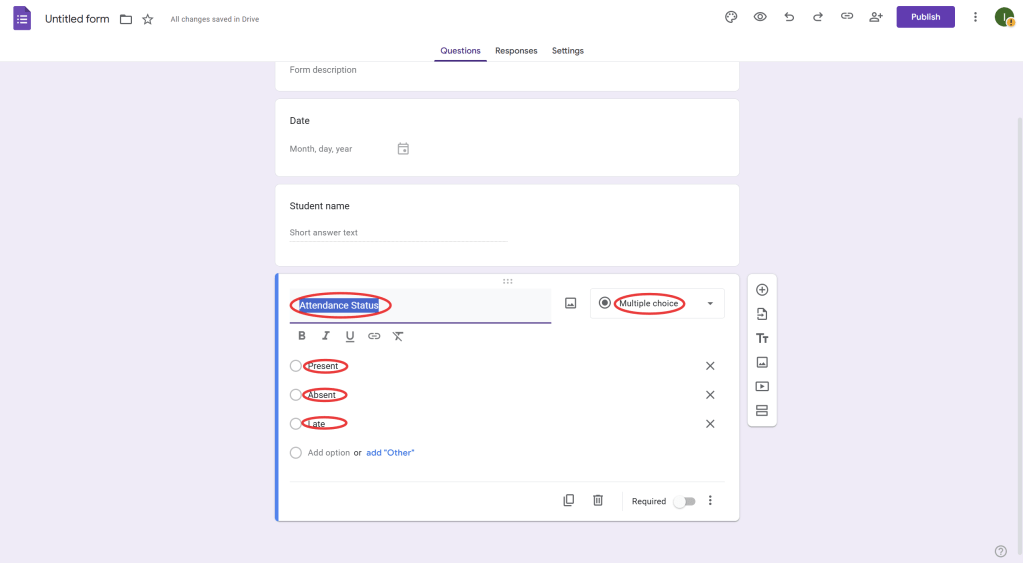
- Add the fields you need, such as:
- For attendance tracking: Date, Student Name, and Attendance Status (Present, Absent, Late).
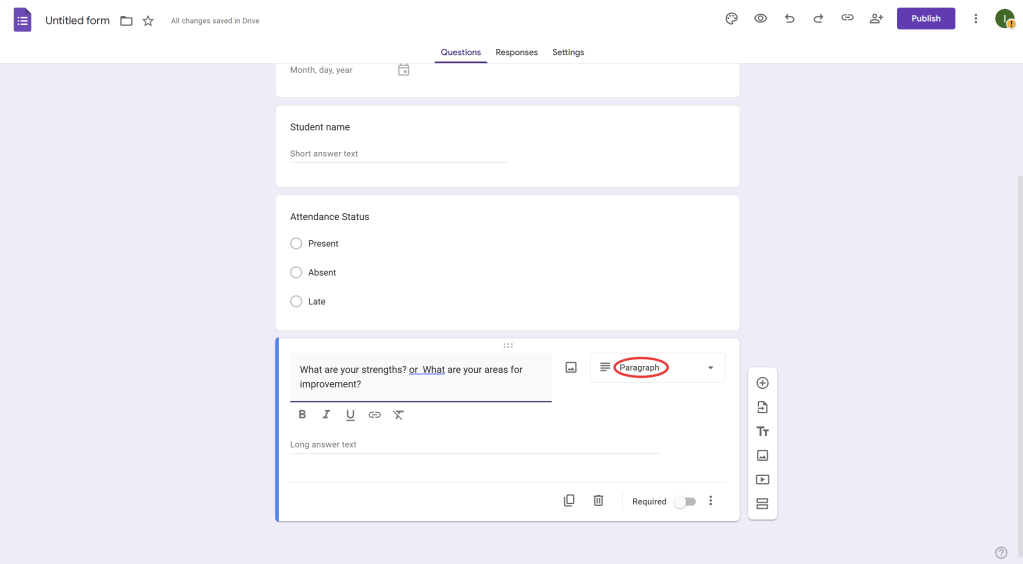
- For teacher evaluations: Questions like “What are your strengths?”, “Areas for improvement”, etc.
- Once the form is set up, click the “Send” button to distribute the form.
Step 2: Link Google Form to Google Sheets
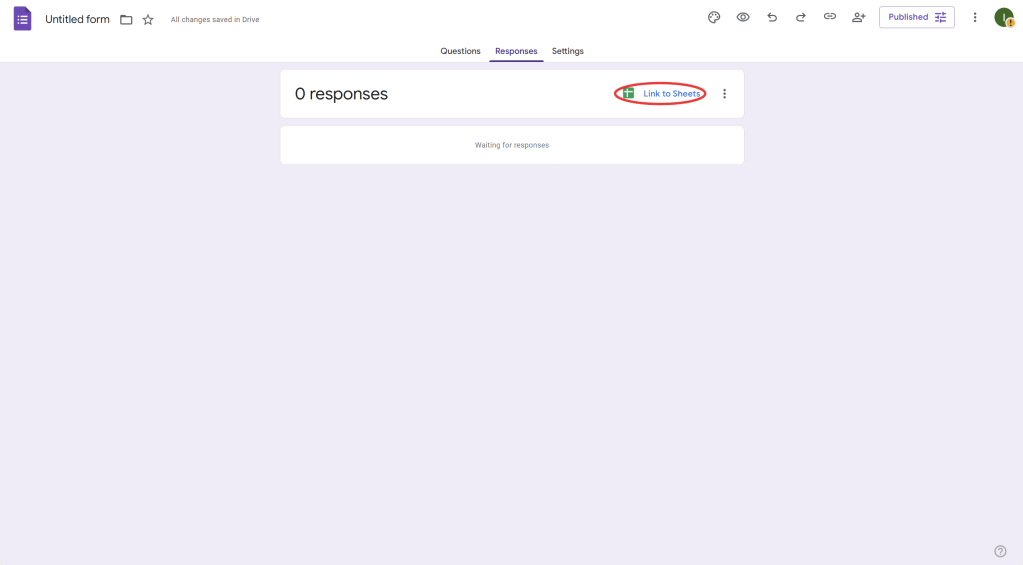
- Once the form is created, go to the “Responses” tab in the Google Form.
- Click the green Sheets icon to link the form to a new or existing Google Sheets document.
- This will automatically log responses from the form into the linked Google Sheets file, with each submission appearing as a new row.
Step 3: Set Up Data Automation in Google Sheets
- In Google Sheets, the data will be populated automatically as people fill out the Google Form.
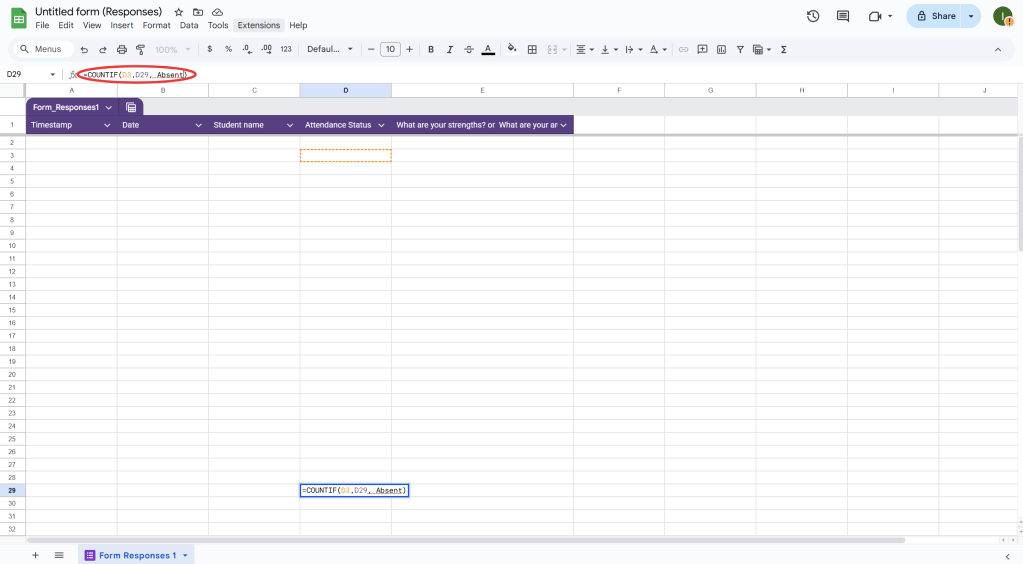
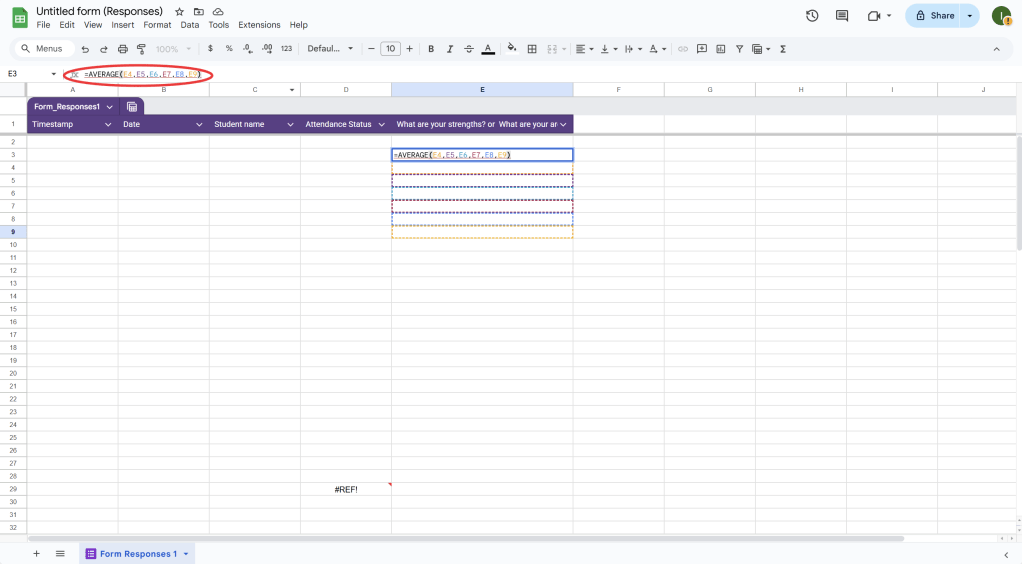
- You can set up formulas to track and process the data, such as:
- Attendance tracking: Use a COUNTIF formula to calculate absences (e.g.,
=COUNTIF(B:B, "Absent")to count how many times “Absent” appears). - Teacher evaluations: Use simple formulas like AVERAGE or COUNTIF to evaluate responses (e.g., counting the number of positive feedbacks or averaging scores).
- Attendance tracking: Use a COUNTIF formula to calculate absences (e.g.,
Step 4: Create Reports and Analysis
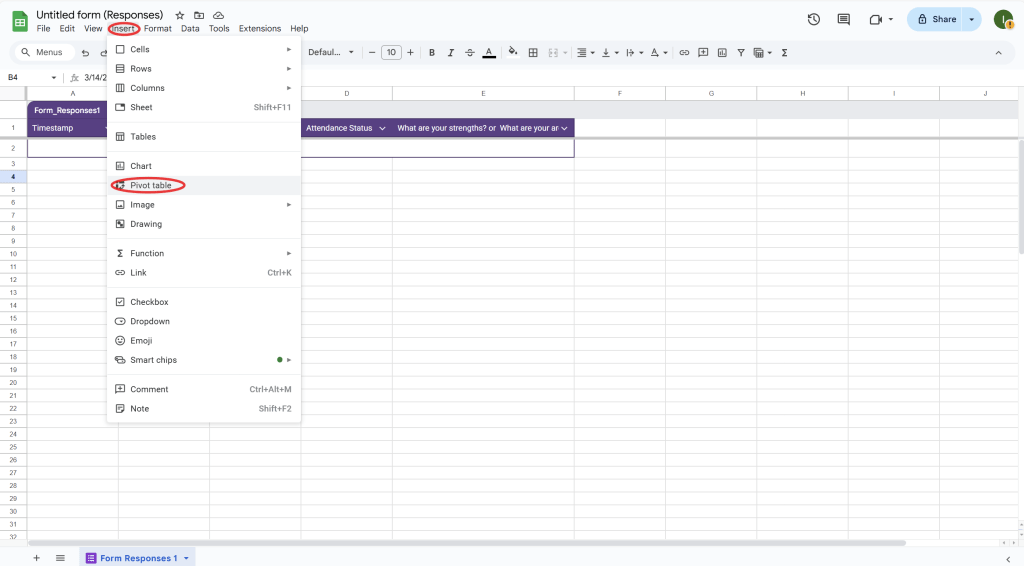
- Pivot Tables: Use Pivot Tables to summarize the data. For example, in attendance tracking, you can use a pivot table to summarize attendance by student or by date.
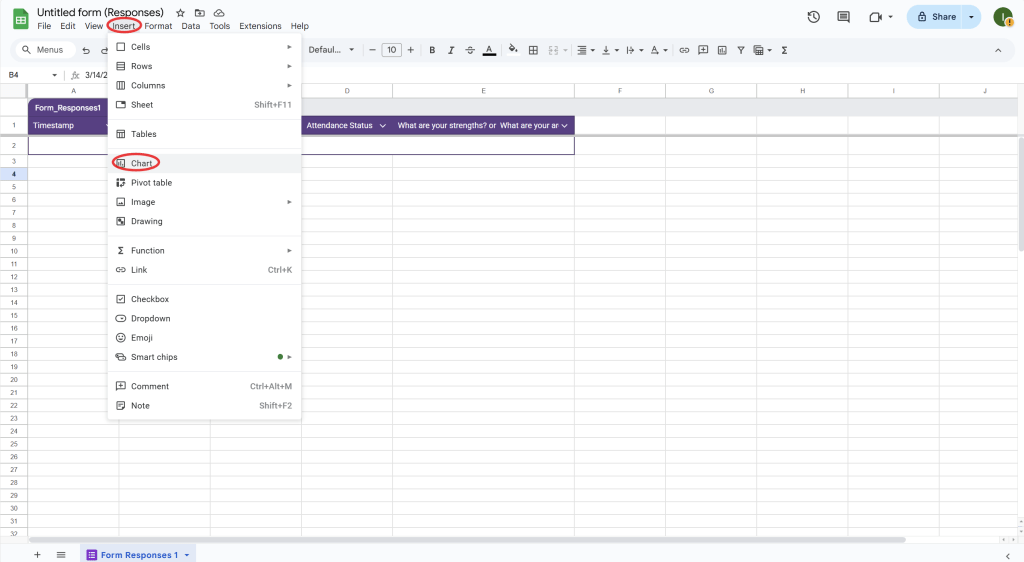
- Select the data range, go to Insert > Pivot Table, and choose the rows, columns, and values to analyze.
- Filters and Graphs: Use filters to view specific data sets (e.g., only the absences for a particular student) and graphs to visually represent the data.
- Highlight your data, click Insert > Chart, and customize the chart type (bar, pie, etc.) for visual reports.
Step 5: Automate Follow-Ups (Optional)
- Email Notifications: You can use Google Sheets add-ons like Form Notifications to automatically send emails when a new response is submitted.
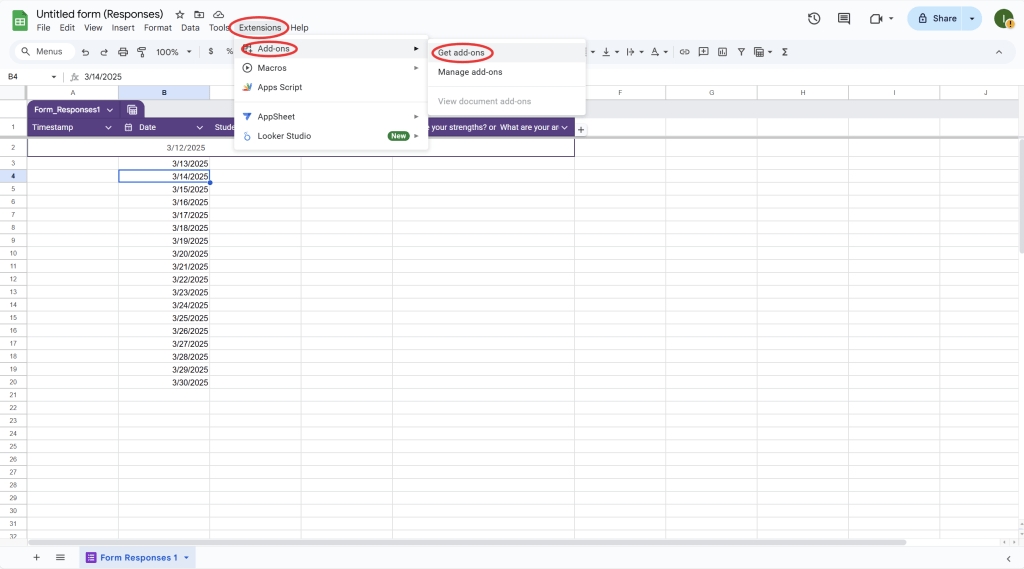
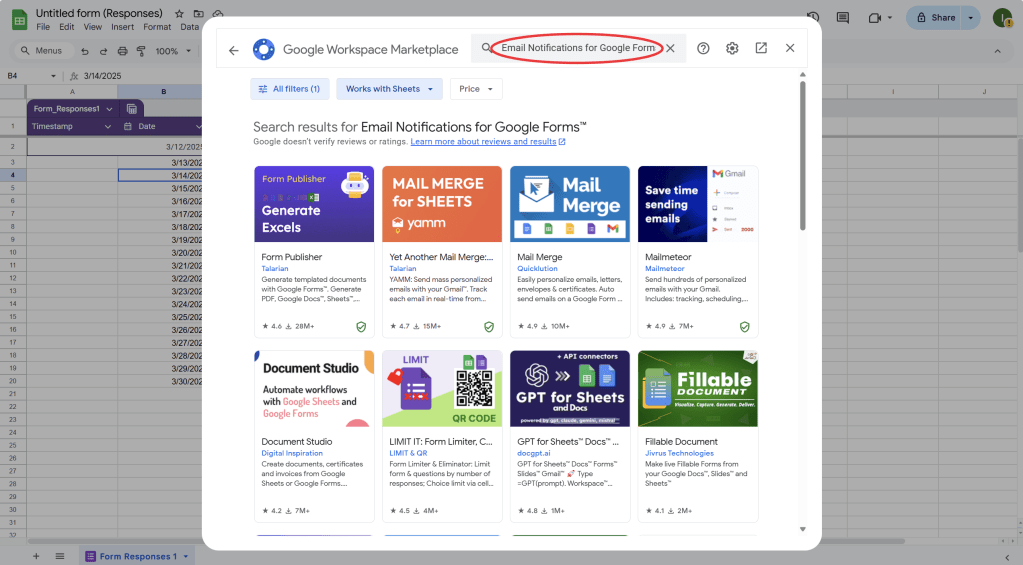
- To set this up, go to Add-ons > Get add-ons in Google Sheets and search for Form Notifications or Email Notifications for Google Forms.
- Configure the add-on to automatically send a confirmation email to respondents or notify you when certain responses (e.g., absences or negative evaluations) are recorded.
Step 6: Automate Data Entry (Optional)
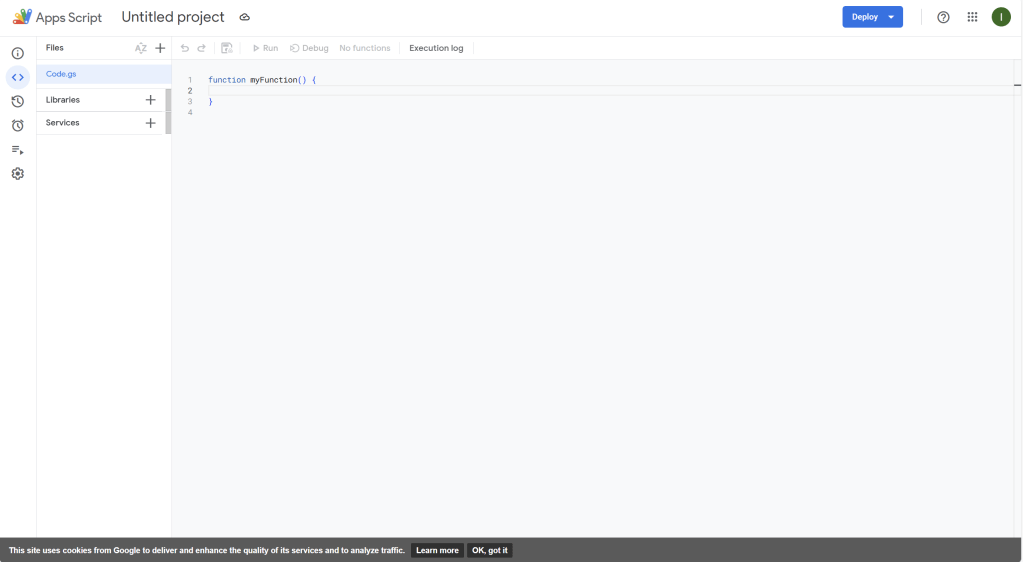
- If you want to auto-fill certain fields, use Google Sheets scripts to automate repetitive tasks. For example, you can write a Google Apps Script to automatically enter the date or student name based on other responses in the sheet.
- Go to Extensions > Apps Script, and you can write custom scripts to automate data processing.
Step 7: Review and Monitor Responses
- With Google Sheets linked to your form, you can easily review and monitor responses as they come in.
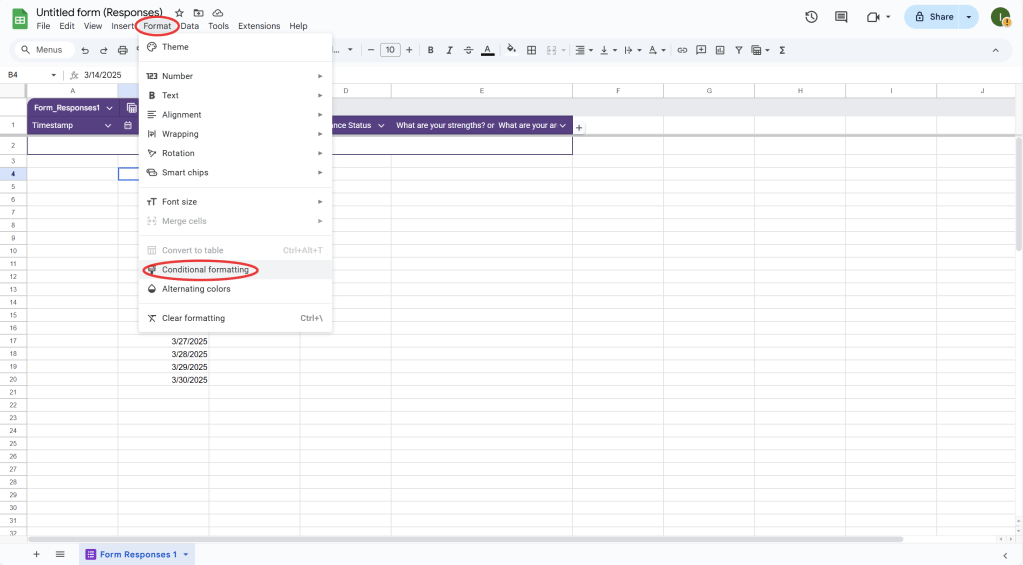
- Using Google Sheets’ conditional formatting, you can highlight certain data points, such as missing attendance or low evaluation scores, to quickly address important items.
By integrating Google Forms with Google Sheets, you can automate repetitive tasks such as attendance tracking, teacher evaluations, and report generation. This integration ensures that data is collected and organized in real-time, and you can leverage Google Sheets’ functions, pivot tables, and charts for analysis and reporting.
 NewEducations